Sofía Acuña, Marilyn Manrow, Brandon Madriz, Kauê de Sousa
Setting up a project in ClimMob
Before creating a project, you must have a ClimMob user account. If you are new to the platform, see Creating a ClimMob account for step-by-step instructions.
Creating a project is the first step in setting up a tricot experiment in ClimMob. Although the different project activities are explained throughout this ebook according to the tricot workflow, they are all managed from the same project workspace in ClimMob.
The following workflow provides an overview of the main activities involved in setting up, implementing, and managing a tricot project. Each activity links to the corresponding section of this ebook, where it is described in detail.
Setup project in ClimMob workflow
- Create a new project
- Assign field agents
- Assign technologies
- Prepare participant registration form
- Technology randomization
- Prepare trial packages
- Assign and distribute packages
- Prepare trial data collection form
- Start data collection moment
- Data collection moments
- Monitoring your project
- Trial documentation
- Closing a project
- ClimMob data report
- Share your project with others
- Publishing your project data in ClimMob - coming soon
Create a project in ClimMob
You can create a new project in two ways:
- From Project overview, click Create a new project.
- From All projects, click Add new project.
Both options open the same project creation form. Once the project has been created, you can return at any time to update its settings.
Project profile
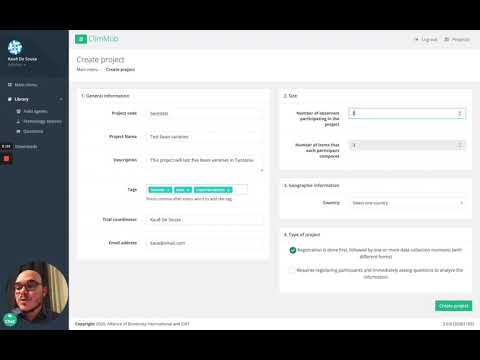
The project profile defines the basic information and configuration of your tricot experiment.
To set up a profile for your tricot project, fill in these fields:
- General information
-
Project name: Unique and more descriptive name for the project. We recommend including the technology, the year or time, and the location, to distinguish the project from others, when you manage multiple projects. For example: Bean_Honduras_2019_season1
-
Project ID: Short, unique identifier of the project. For example, your initials and year of the project: JV19.
-
Description: Add more detail about the project.
-
Keywords: To make your project searchable to other users, enter up to X keywords that define your project. Examples: “bean”, “Honduras”.
-
Trial coordinator: Your full name, start with your first name, all names separated by a space. By default, it is already filled with your data. Change if the trial coordinator is someone else.
-
Email address: Your email address.
-
Affiliation: Select one or create a new affiliation, if any of the options applies to your organization.
- Geographic information
- Select the country where the project will take place
- Participants
- Number of participants: Enter how many participants will join this project. For example: 200. If you don’t know the exact number yet, better choose a number too high than too low (but still reasonable, as otherwise ClimMob will do a lot of unnecessary computing later on).
- Technology options labels
- Number of technology options each participant compares: By default, this is set to ‘3’ and cannot be changed. It’s a reminder that in a tricot project, every participant will receive 3 technology options to compare.
- Name given to the 3 items that each participant compares: by default the names are “Option A, Option B and Option C” but the trial coordinator could decide to change them for something else that participants can relate to better, such as numbers, colors or shapes.
- Project type
- You can indicate whether the project is a training project. This means the project was created for educational purposes—such as practice, demonstrations, or coursework—and not intended for actual data collection in the field.
- There are three options for experimental site: on-farm testing, home, or public space (e.g., market). Depending on the experimental site selected, you will need to choose between different units of analysis and corresponding objectives (see examples in box below).
- Do you want to create your project from a SOP template? Select if it applies to your project. Read more about SOPs here.
- Finally, you can select up to four languages in which the participant forms will be provided, allowing multilingual data collection as needed.
Video tutorial
Create a new project
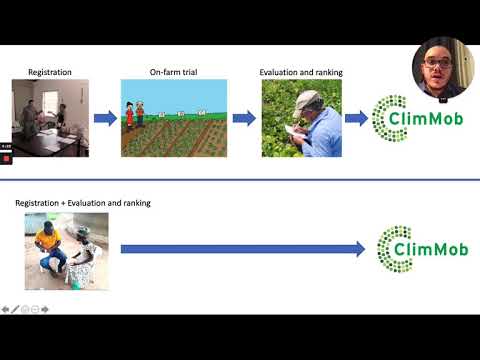
Types of projects
Assign technology options
Technology options define the interventions that will be compared in your tricot experiment. Continuing with project setup, select the technology options that will be included in the project.
If the required technology is not available, click Add new technology to create it in the Library before assigning it to the project. See Library for more information.
We recommend selecting between 8 and 12 technology options for a first tricot experiment.
How to
- From Project overview, click Assign technology options.
- Select the technology you want to evaluate.
- Choose the technology options to include in the project.
- If the required technology is not available, click Add new technology to create it in the Library.
- Save your selection.
Video tutorial
Assigning technology options to your ClimMob project
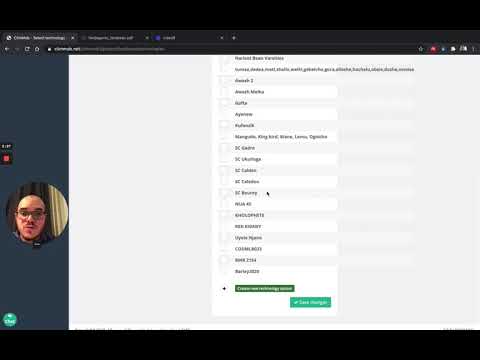
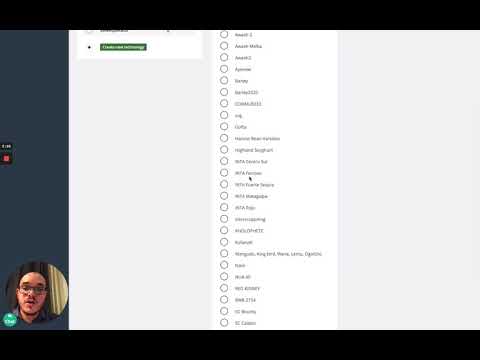
Filling the ClimMob library with new technologies (e.g. varieties) to test in the tricot trials:
Prepare trial data collection form
Trial data collection forms define how observations will be collected throughout the trial. In ClimMob, you design these forms by creating the different data collection moments and selecting the questions that participants will answer during each stage of the evaluation.
Whenever possible, we recommend creating your project from a Standard Operating Procedure (SOP). SOPs provide a recommended set of evaluation moments and questions based on established experimental protocols, helping standardize data collection, improve comparability across projects, and reduce the time required to configure a trial.
The recommended forms can be adapted to the specific needs of your project. You can add, remove, or modify questions, as well as create new questions when additional information needs to be collected. If no suitable SOP is available, you can design the trial data collection forms entirely from scratch.
When designing the trial data collection forms, consider:
- Which traits will be evaluated for the selected technology options?
- At what stages of the trial should each trait be assessed?
- Which questions are needed to capture participant observations at each evaluation moment?
Once configured, these forms will guide field agents and participants during data collection. Starting and managing data collection moments is covered later in the Execution and Observation chapters.
How to:
- From the Project Overview, click Prepare trial data collection form.
- If available, select the Standard Operating Procedure (SOP) that best matches the technology being evaluated.
- Review the proposed data collection moments and questions.
- Add, remove, or modify questions as needed for your project.
- If you are not using an SOP, add the required data collection moments throughout the evaluation cycle.
- Open each data collection moment from the Active data collection moments panel by clicking Edit.
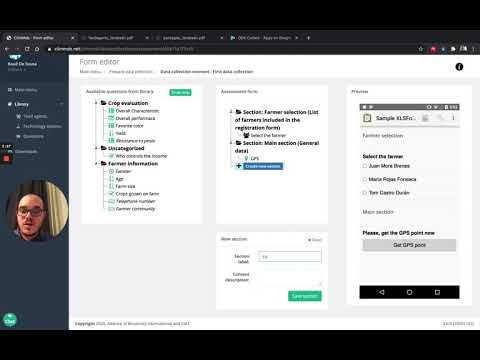
- Drag questions from the Question Library into the Assessment form for each data collection moment.
- Review the form using the Preview panel.
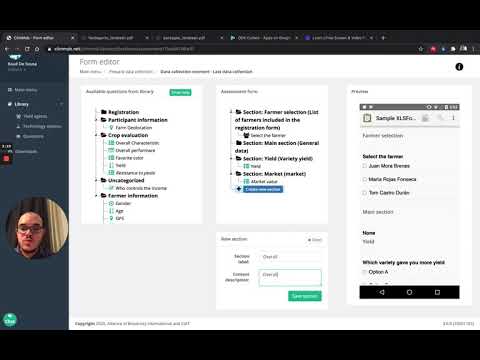
- If the required question is not available, click Add new question to create it in the Library. Questions stored in the Library can be reused across future projects. See Library for more information.
Video tutorials
Project setup - Data collection survey, part 1
Project setup - Data collection survey, part 2