Data collection
Trial data collection
Once farmers have started their on-farm trials, the next step is to collect the data generated at the different data collection moments. For each moment, ClimMob generates a specific form with tailored questions. Data can be collected using ODK Collect (recommended) or, alternatively, by uploading an Excel file to the ClimMob platform.
Using ODK Collect (recommended)
-
Each field agent opens ODK Collect on their phone.
-
Tap the three dots (top-right) → Get blank form → select the data collection form.
-
For the first data collection moment:
- Choose Fill blank form
- Select the participant
- Enter the data
- Send the finalized form
- Back in the ClimMob platform, the project administrator must:
- Check the collected data and correct if necessary (from the main dashboard, click View data on the right side and select the parameters to review).
- Once verified, go to the main menu, finish the first data collection, and start the next assessment.
- Repeat this process until all data collection points are completed. Actions in ODK Collect:
Cancel form: Permanently deletes the form. No further data can be collected, and any existing data will also be deleted. Using Excel (not recommended)
-
In the ClimMob dashboard, go to the main menu (left side) and click Upload data (green button).
-
Click Create template. The Excel template will be generated and saved in your Downloads as Excel template for uploading assessment form data.
-
Fill in the template with the collected data.
-
Return to the ClimMob main menu → Upload data (green button) → upload the completed Excel file.
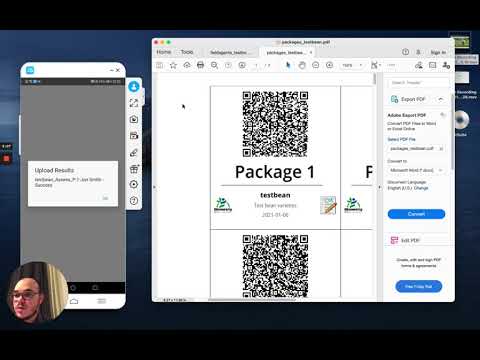
Video tutorial:
Data collection with ODK Collect
Submit data from a browser
To fill out forms online supported by Enketo, the field agents (enumerators) need to log in using their credentials (username and password). Here we do a quick explanation on how to register a new field agent, that subsequently will login to Enketo to submit data from a browser.
Visit the Field Agents section in the main menu:

Fill in the form with the credentials of the field agent.
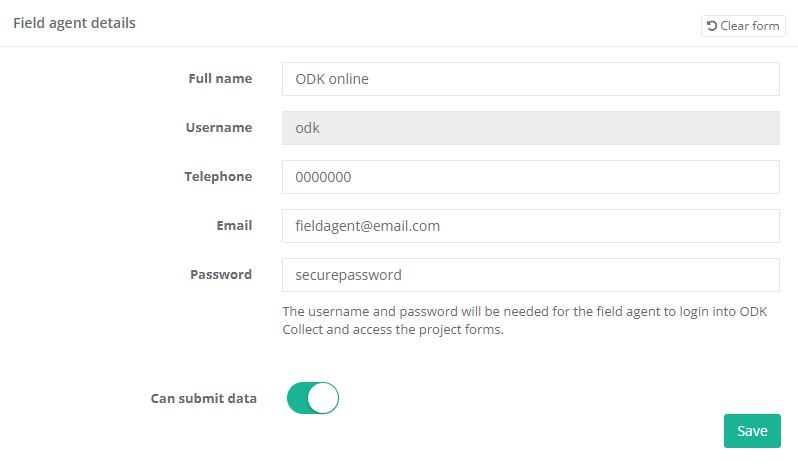
Verify that the field agent has been successfully created in the list of registered field agents:

In the project definition, select “Assign field agents”:

Select the field agent(s):
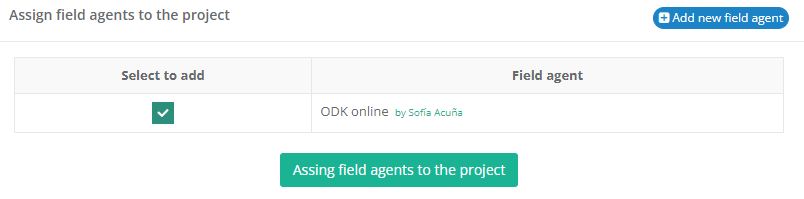
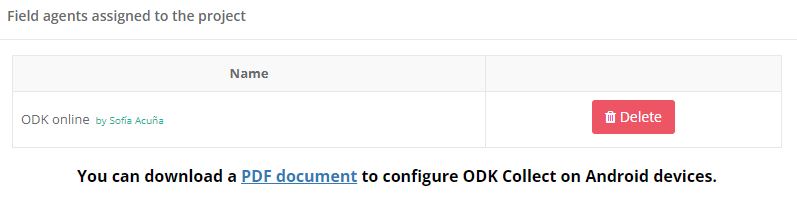
Click on the “Add field agents” button and verify that the user has been assigned to the project.
In the main menu, visit the form you wish to fill out using the browser and click on the “Submit data from a browser” button to display the form:
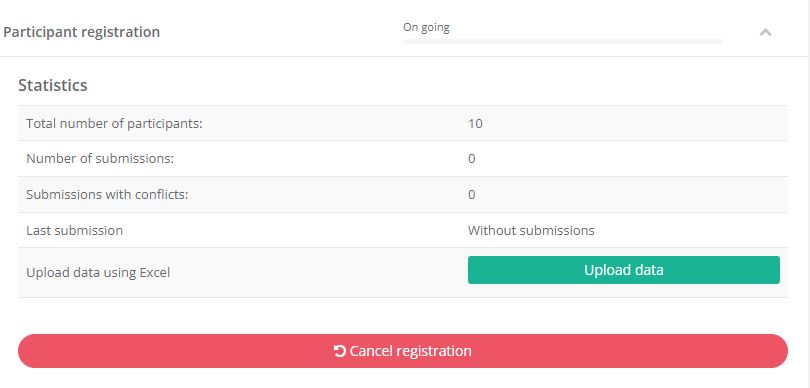
Now the form will be displayed and request the field agent credentials that were registered in the Library.
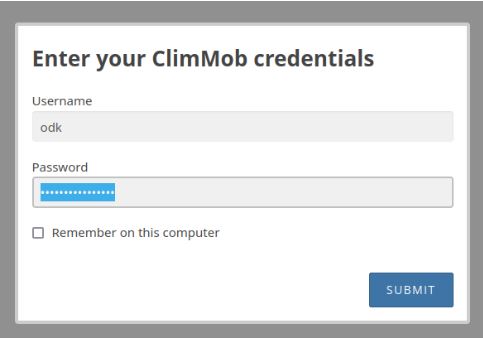
Once the credentials are provided, the form to be filled in will be displayed:
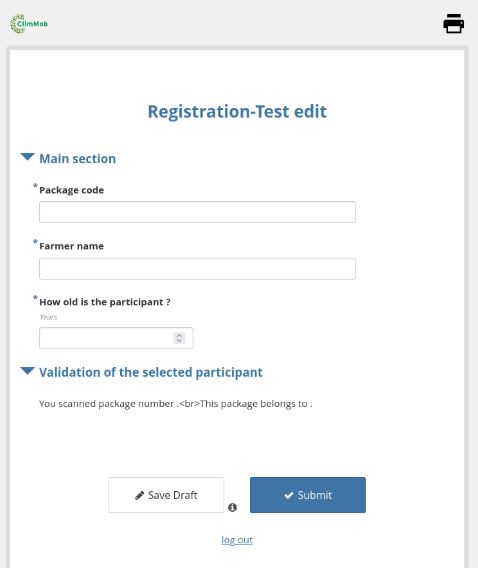
In the case of the Registration Form, you need to replace the QR code (used in ODK Collect) by a code that follows the pattern: projectownerusername-packagenumber-projectcode~
For example, if the project owner username is: ballen and the project code: prj01 and you assign the package #30 you should write as follows: ballen-30-prj01~
Remember to keep the ~ sign at the end so ClimMob can read the entire code.